
KOMPASS signage software
Design, schedule and manage your screen content.
Bring images, videos, text, prices and schedules together in a display. Set up sequences and scheduling rules, then maintain the information that changes in your business.
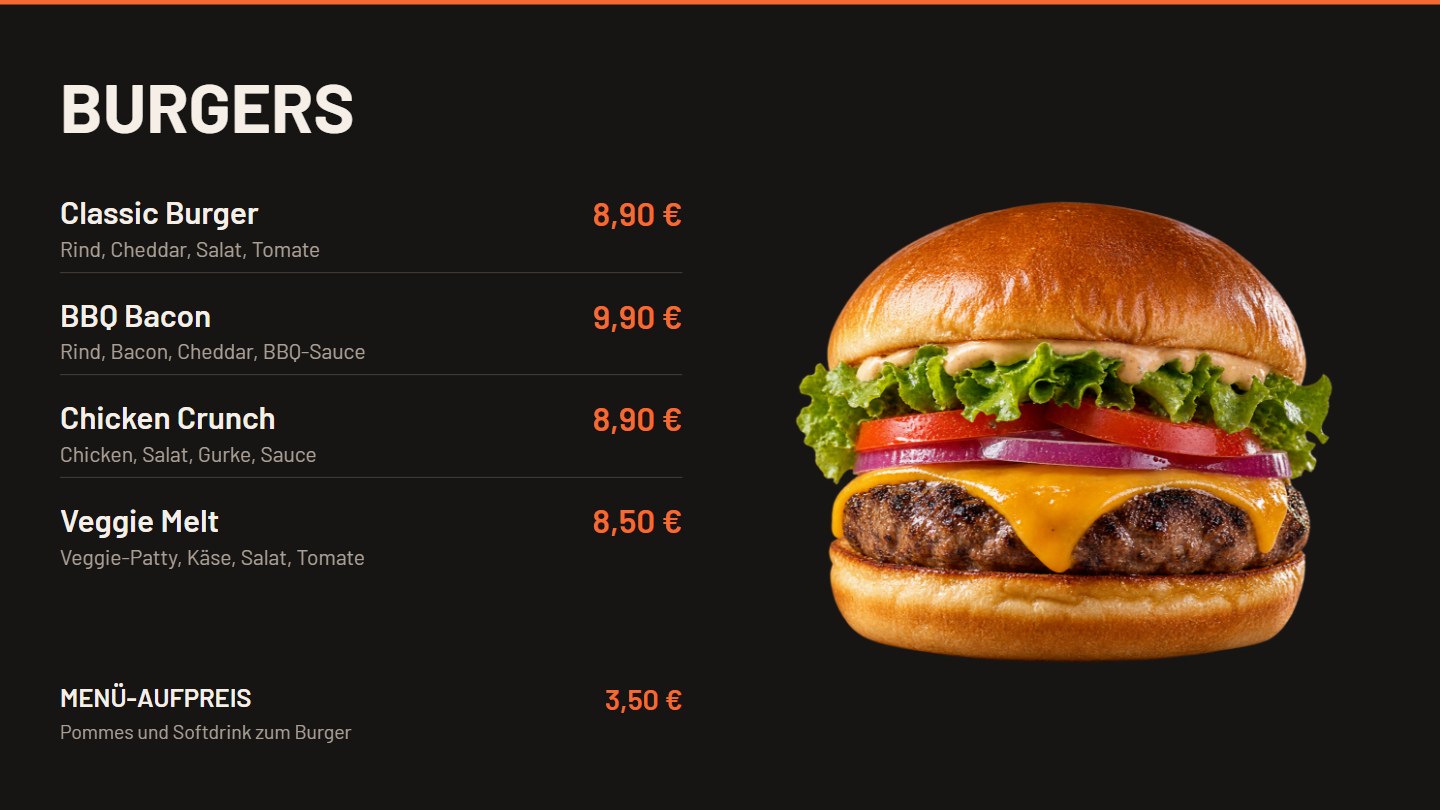
Design the display around your content.
Arrange images, text and other elements on the canvas. Set colours, fonts, sizes and positions. Layers, alignment and guides help you build the layout. Reusable pages and templates make similar displays easier to create.
Make one product the centrepiece, group several offers in a price list, or keep a schedule visible while other content changes alongside it. The preview shows the saved layout in motion.
Choose what changes on the screen.
Media playlist: images and videos in one area.
Build a sequence of images and videos. Set their order and image display times. The area can cover part of the display or the entire page.
Rotating pages: the whole layout changes.
Switch between fully designed pages, each with its own content, arrangement and display time.
Popup playlist: an additional overlay.
Show a temporary notice over the main display. Set its position, size and appearance to suit the layout.
Fly playlist: images in motion.
Move prepared images through a defined area to complement the existing design.
Slider list: images in a dedicated area.
Rotate images or logos while other parts of the display stay in place.
Animation playlist: create your own sequence.
Combine images, text, shapes and groups into designed scenes. Product bindings can bring maintained product information into the sequence.
Explore products and details.
 IMAGE · example
EXPLORE PLAYBACK
The information stays. The images change.
A media playlist rotates images and videos in one area. Other information can stay in place.
Start retail previewSchedule the playlist and the individual items within it.
Scheduling rules determine when prepared content is eligible to play. A media playlist can have a shared time window, with individual items restricted to a narrower window.
Example: A playlist contains 20 images and videos and is scheduled for Monday from 9 am to 6 pm. Some items may only appear from 4 to 6 pm. Both rules must be met for those items to be included.
Monday, 10 am: The playlist is active; the items scheduled for 4–6 pm wait.
Monday, 5 pm: Both regular items and the additional 4–6 pm items are eligible.
Monday, 7 pm: The playlist window has ended; none of its items are eligible.
Tuesday, 5 pm: The weekday does not match; none of the playlist items are eligible.
An item that becomes eligible is included within the configured sequence.
20 IMAGES AND VIDEOS
Mon 10 am · Playlist active.
Regular items are included in the sequence. Items scheduled from 4 pm wait.
- Image · regular item: Eligible
- Video · additional time window: Waiting for 4 pm
Maintain prices in the product record and use them in your display.
Product names, descriptions, variants and prices are maintained as data. The layout determines how those values appear on screen. A price change does not require adding new text to every product image.
Example: The Cappuccino price changes from €3.20 to €3.40. Linked price fields use the new value while the product image, font and positioning stay in place.
Price example
Product record
Cappuccino
€3.20
Linked price field
Cappuccino
€3.20
Change the product price: the linked price field uses the new value once the update has been delivered.
Manage each schedule in its dedicated view.
For sport and training, set up a regular training week and exceptions for individual calendar weeks. The saved schedule can appear on screens and in an authorised website embed.
Sauna sessions are managed as a daily schedule. A display can show the full overview or selected saunas, with images, notices or offers alongside the sessions.

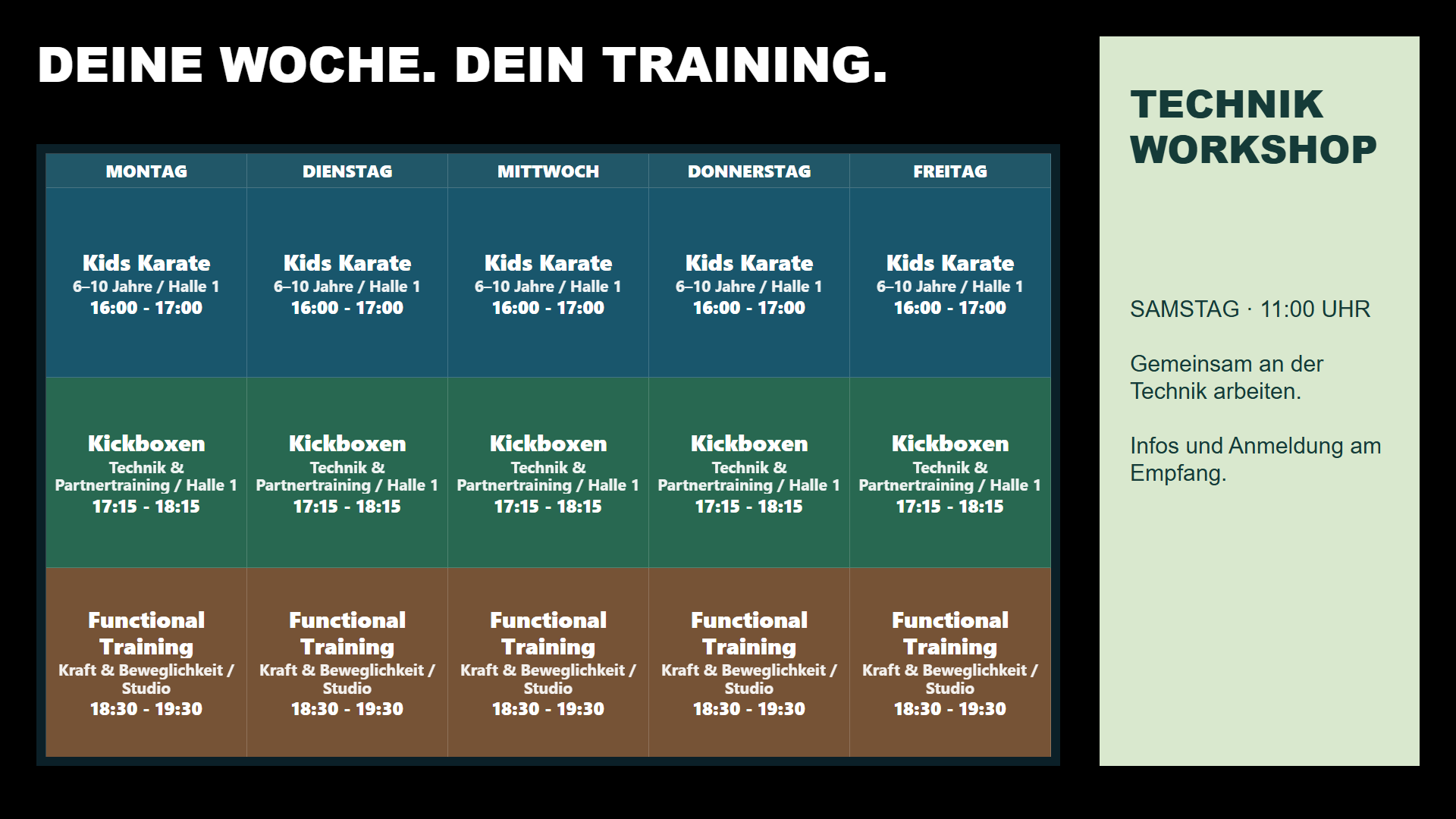
One maintained schedule, displayed to suit your setting.
Edit sessions in schedule management. The layout combines them with other content.
Start training schedule previewDistribute content across individual screens or a menu board.
Individual screens can show different content. Each position in a menu board has its own role. Shared areas spanning several screens can also be designed for suitable setups.
A preview shows the intended arrangement. The final setup takes display formats, positions and devices into account.
Select a screen for a closer view.
Deliver new content and play prepared content locally.
Product prices and linked text are updated through data management. New media, layouts and changed sequences are prepared for playback. The update process depends on the type of content being changed.
Fully prepared content can continue locally during a temporary internet interruption. New content and current external data require a connection. Player setup and requirements are part of project planning.
Which sequences would you like to prepare for your business?
Show us typical content, your screen locations and the changes you make day to day. We can discuss a suitable setup together.